How to Build a Reputation Monitoring Dashboard
Posted by Marty Weintraub on March 16th 2009 in reputation managment | 56 comments
An essential aspect of any reputation management job, is monitoring the never-ending flow of content germane to our client. Most often the keyword monitoring “Big List” includes brand, products, C-level executive names, intent phrases and competitors’ keyword permutations.
This post is a guerrilla tutorial for building a totally free reputation monitoring dashboard, suitable for personal/corporate use or reselling to an agency client. You’ll be able to easily build a tool where nobody can even whisper your business keywords, in a positive or negative light, without your awareness.
Just about everyone subscribes to Google Alerts, free & comprehensive (news, blogs, video, web, groups) alerts by email for newly indexed keyword instances. Things got exciting for reputation monitoring pros recently when big G rolled out SERPs notifications by RSS. Now any newly indexed Google keyword instance can be monitored from the comfort of your favorite feed reader.
Other significant channels offering keyword level subscriptions, include Twitter and other content indexing services. While this tutorial uses free Google products:
It’s the ethic of monitoring indexed keyword instances from multiple channels in an organized system of feeds, and delivering the results as actionable insights by feed reader dashboard, to quickly discover threats & opportunities.
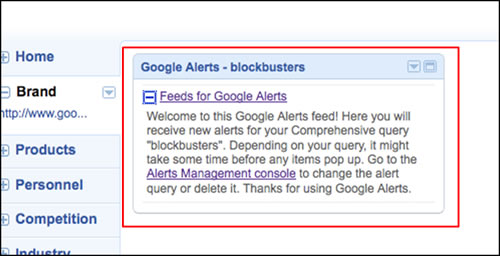
This is what the end result will look like, a tabbed iGoogle dashboard, graphically customizable and suitable for professional monitoring.
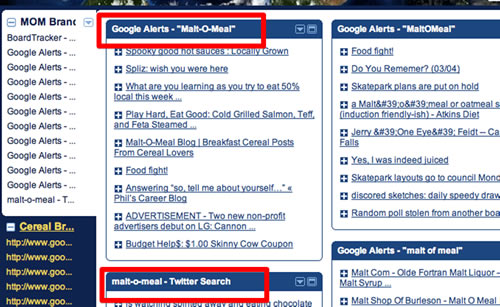
While there are industry standard paid reputation monitoring tools sporting cool features, any person or business will made more powerful having someone in the shop able to wire this free puppy up. After constructing the dashboard outlined in this tutorial, use whatever feed reader you like. Again it’s the ethic of comprehensive monitoring by feed that matters here. Let’s get started:
——–
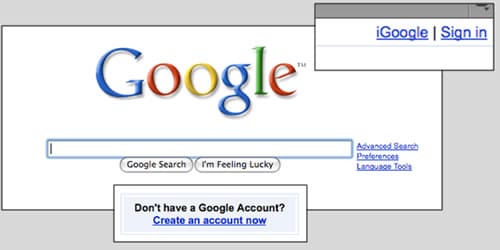
Create a Google account if you don’t already have one.
——–
Open an Excel document and create tabs, segmented by the following reputation monitoring categories: “Brand,” “Product,” “Personnel,” “Competition,” “Industry Phrases” & “Intent Words.” We’re going to make the Big List of keywords to monitor.
——–
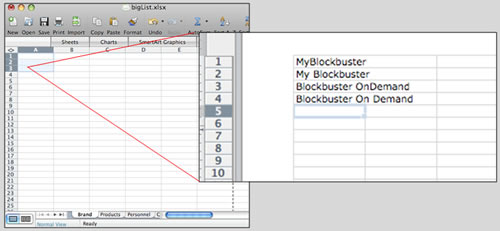
Paste “correct” (the way you say it) brand name permutations into the ‘Brand’ tab. This is the easiest step of all.
——–
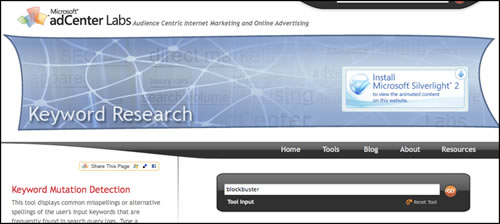
Open a web browser and navigate to MSN Keyword Mutation Detection Tool. Set a bookmark, you’ll be visiting this tool again.
——–
Type in or paste the first brand name keyword on your list. Go
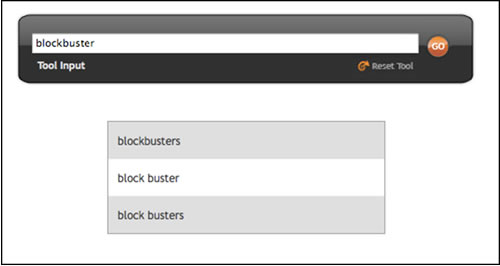
The returns common iterations of a keyword. Copy them.
——–
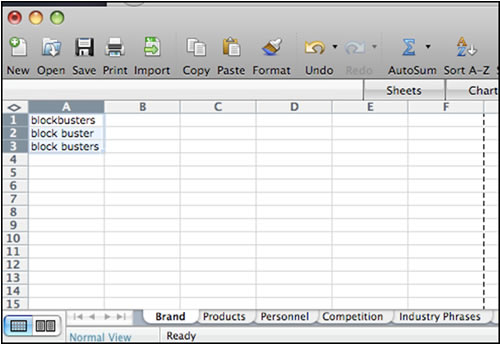
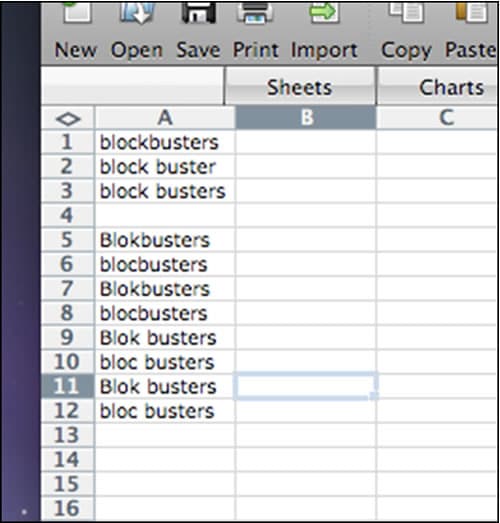
Paste them into the brand tab on the Big List. Run the MSN Keyword Mutation Detection Tool again on the next correct brand word. Run them all. Paste them into the Big List.
——–
Trellian Keyword Discovery a paid service, has my favorite misspellings engine, which we sometimes use at this point.
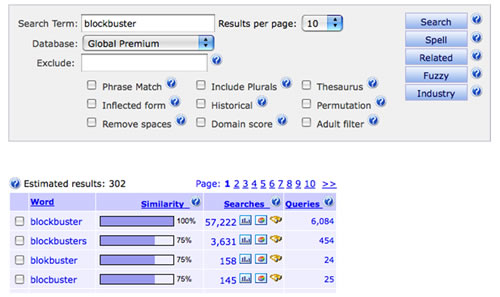
However you can totally get by without paid tools. Finding hacks of your brand keywords is pretty obvious business. Try stream of consciousness brainstorming and don’t be afraid of being silly. I can nearly always duplicate KW discovery misspellings by just free-forming. Add these brand name keyword permutations to the Big List.
——–
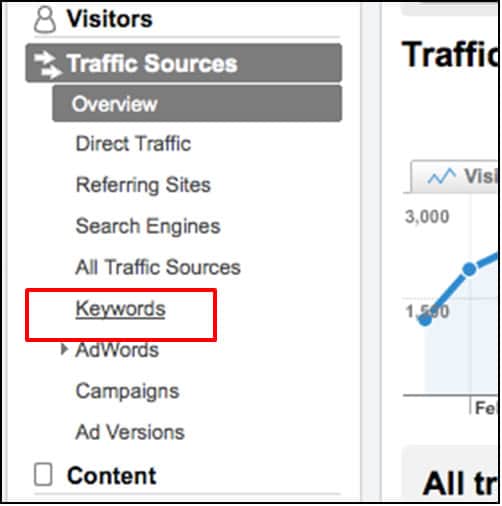
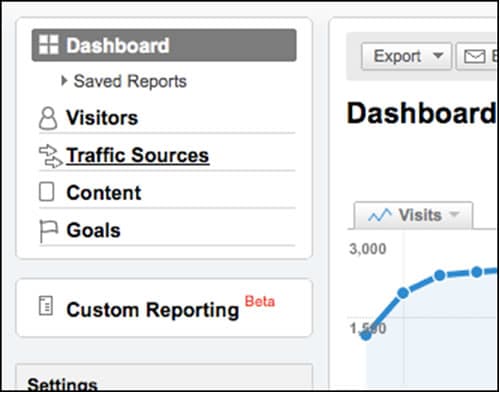
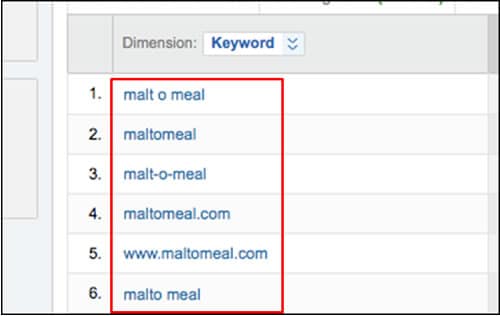
Another great place to find insight regarding brand permutations is the organic analytics from your site. Here we drill into ever-ubiquitous Google Analytics. (Of course you actually have to have been running analytics on the site prior) Click on Traffic Sources.
——–
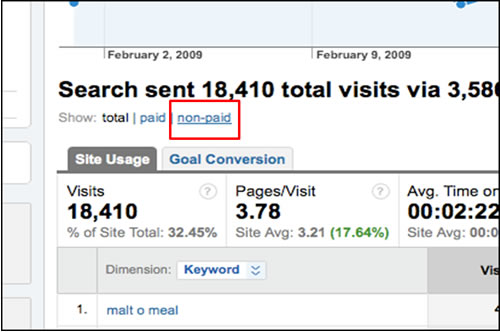
View traffic from paid and non paid brand search keywords. Select non-paid for organic. [Please note: PPC data on phrase or broad match keywords often yields useful permutations as well.]
——–
Grab any heretofore undiscovered permutations by copying.
——–
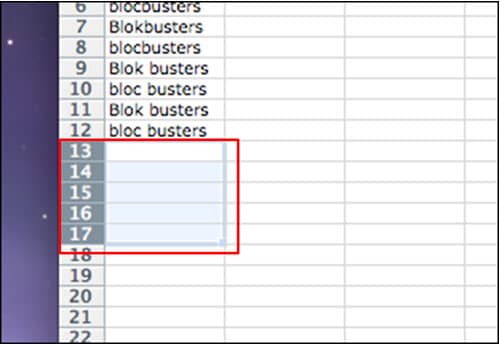
Paste in any brand keywords noted from analytics to the Big List. Now it’s safe to say that we have most brand permutations.
——–
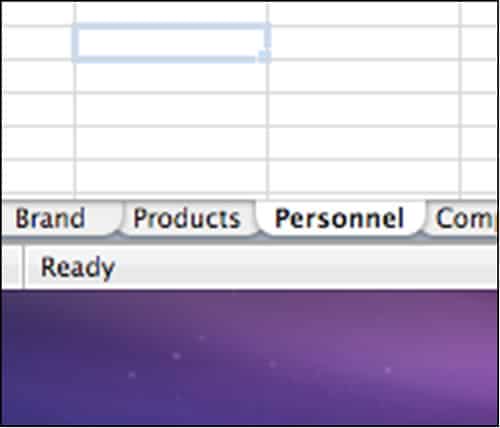
When done with brand keywords, repeat this process for every product to populate the Products Tab of the Excel Big List. Sure it’s time consuming, but take the time and it will be well worth the effort.
Do the products tab of the Big List now…
——–
Update on Progress! There are 4 tabs on our big list remaining,“Competition,” “Personnel,” “Industry” & “Intent.”
——–
“Personnel” Tab of Big List
“Personnel” refers to C-Level executives, public spokespeople or anyone else we’d like to monitor. Often times this includes competitors primaries. There’s no need to go crazy with misspellings unless someone’s name is complicated. Just be sure to call “Russ” “Russell” and other extremely obvious nicknames. In our experience, overdoing scan-width does not equal finding much more dirt.
——–
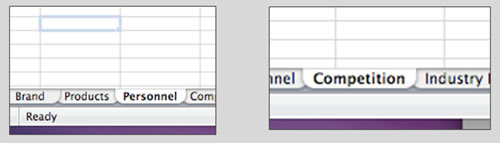
“Competition” Tab of Big List
Monitoring your competition is useful for defending your own brands and products. We keep an eye on competitive brands by the same segments by which we monitor our own: “Brand,” “Product,” “Personnel,” etc…
- Discover competitors’ promotional efforts as soon as possible
- Find their weaknesses, liabilities and advise your marketing efforts to best exploit the information.
- Learn about new important products and product categories.
——–
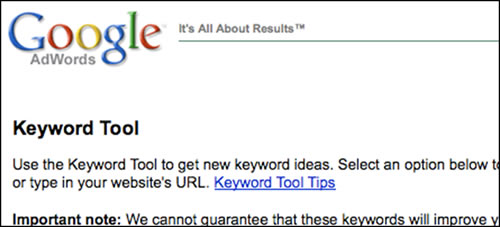
Finding Industry phrases is by classic keyword research process. Fire up the External Google Keyword Tool. We’ll this Google PPC inventory tool to find keywords SO commonly searched for, that they can be considered an “industry category” word. Short Short Short Tail = Industry
——–
Finding Category Words
——–
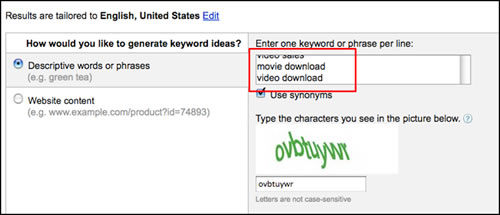
Type in as many categories as you know about in regards to your business. When in doubt, use a thesaurus (for stemming). Make sure to check the “Use Synonyms” box, which will add Google’s stemming insight to the results.
——–
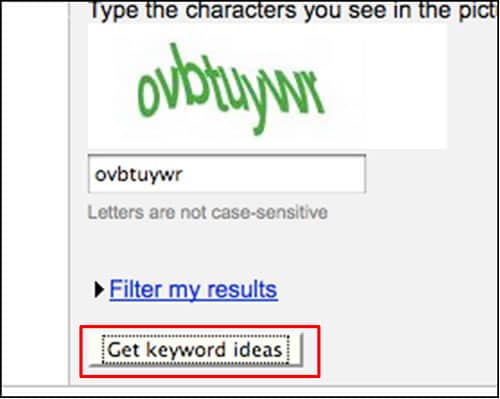
“Get Keyword Ideas” after confirming that you’re human.
——–
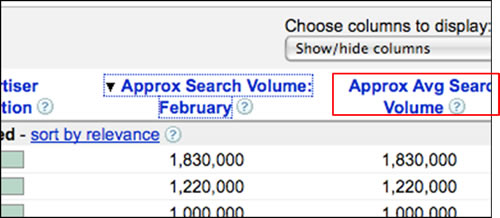
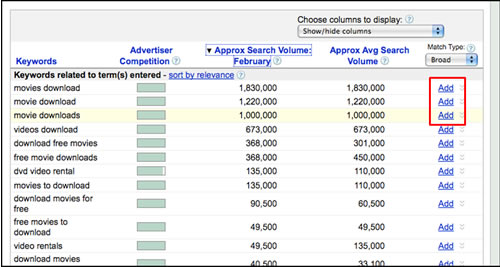
Click on “Sort by average volume.”
——–
Add the top 3-5 to the keyword bucket. They’re your industry category words for the Big List.
——–
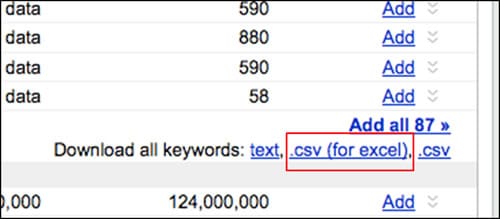
Export to spread a .CSV file.
——–
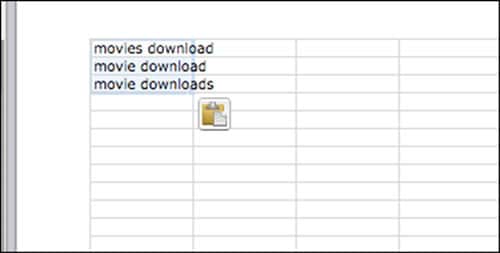
Copy From Exported Spread Sheet and Add To Big List Under the Industry Tab.
——–
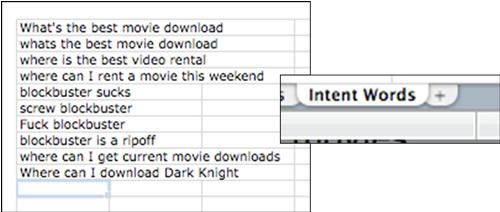
The final tab for this dashboard build is for “Intent” phrases. Think about different ways customers say “you’re great,” “you suck” or ask for information with longer phrases. There’s no need to go crazy with variations on the same keywords (singular, plural, etc…). Intent phrases are very long tail in themselves.
——–
Building the Dashboard
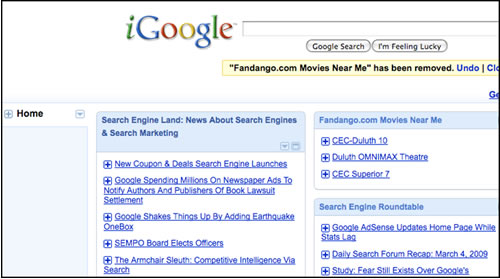
Now leave the Big List aside. Open your igoogle dashboard. (Make sure you’re logged into Google and go to http://www.google.com/ig.) If you already use iGoogle, you’ll see your iGoogle homepage. Don’t worry, you won’t lose it. This is as simple as adding new tabs in iGoogle, corresponding to the Big List tabs in the Excel doc.
——–
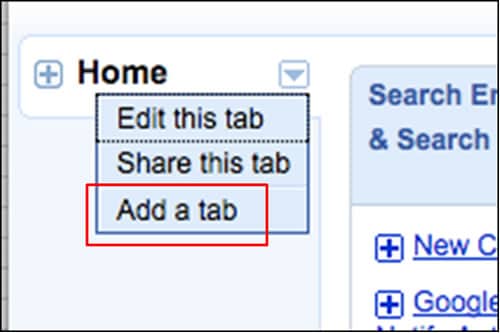
Add a New iGoogle Tab
——–
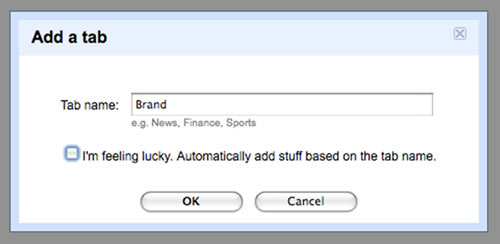
Name the Tab “Brand.”
——–
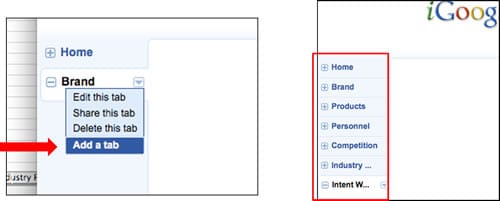
Create New iGoogle Tabs to Match the Big List Excel Tabs
——–
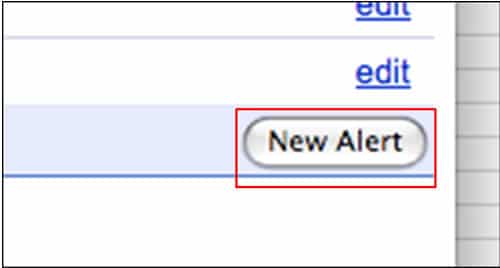
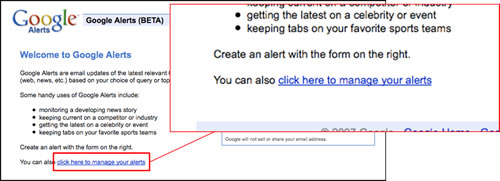
Now it’s time to set up our keyword feed subscriptions. Set Up First Google Alert. Go to Google Alerts and click “New Alert.”
——–
Type or paste in you first word. Sorry you have to set these up 1 at a time for EVERY word on all tabs. 1 Word at a time, starting with you brand keywords, create alerts. Choose “comprehensive” meaning all Google channels. Choose the “feed” and “as it happens” options.

——–
Right click and copy the link location of the of orange RSS button
——–
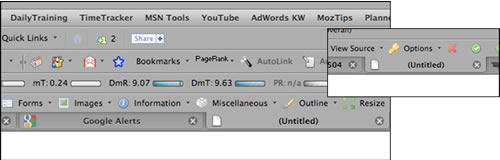
To get around a Google bug in some browsers, “clean” the URL you just copied by opening new FireFox tab.
——–
Paste in URL copied from RSS button and hit “return.” (This cleaning step is only needed, for some odd reason, when using Google.)

——–
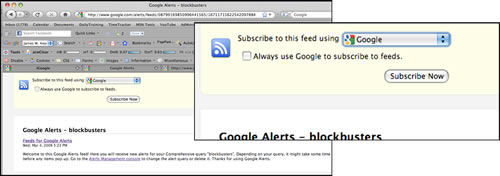
“Subscribe to this feed using “using Google” as feed reader. Check “Always use Google to subscribe to feeds” and click “Subscribe Now.”
——–
Select “Add to Google homepage.” “Google Homepage” is another word for iGoogle.
——–
Congratulations, you’ve created your first iGoogle reputation monitoring gadget. You’ll see the new gadget added to the iGoogle dashboard on whatever tab you have selected. Cool!
——–
Create Alert for next word on the Big List.
——–
We’ll review. Let’s go through the steps again to add a Google Alert to iGoogle for your second brand word. Click “New Alert.”
——–
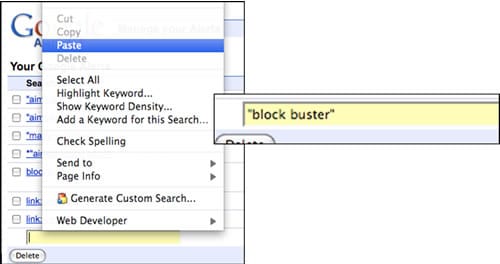
Paste your next word into Google Alerts. Note: Two or more words require quotations.
——–
You know the drill!
The options are: Comprehensive, Feed, As it Happens, then click “Create Alert.”
——–
Copy address of orange RSS button with right click.
——–
Don’t forget that pesky Google Bug! Clean the URL, open new FireFox tab and paste the URL.
——–
Paste in URL copied from RSS button. Hit “return” on your computer’s keyboard.
——–
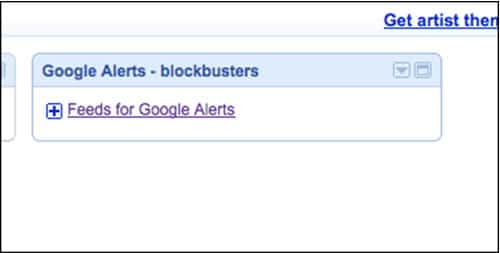
New reputation monitoring gadget in iGoogle.
——–
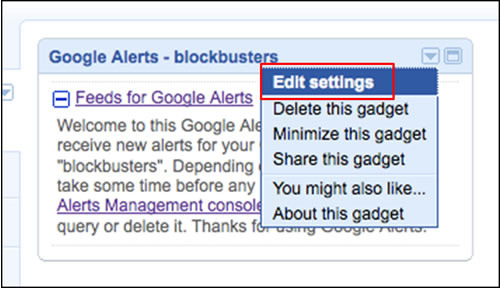
FYI, There are cool gadget settings, available by clicking on any gadget’s little down facing triangle. Edit your settings.
——–
Increase the number of feed Alerts displayed.
One by one, add all the words on the Big List to the appropriate iGoogle tab.
——–
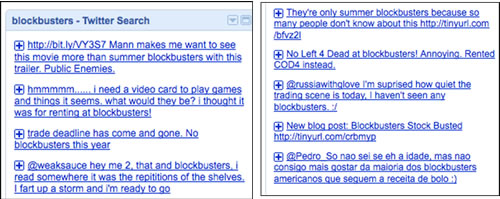
Other search services (other than Google) offer keyword level subscriptions. Twitter is quickly becoming an essential channel to monitor. Navigate to http://search.twitter.com.
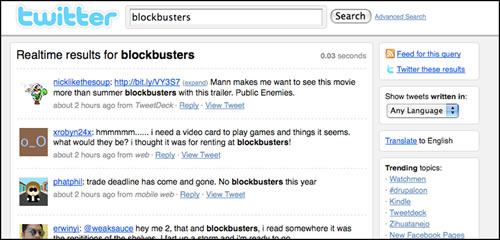
It’s really easy to subscribe to twitter search feeds using iGoogle. While there’s standalone API applications like TweetDeck to watch feeds real-time. Many business folks want Twitter chatter included in their dashboard next to Google alerts.
Search for your keyword in Twitter Search.
——–
No need to clean, just click on ‘Feed for this query’

——–
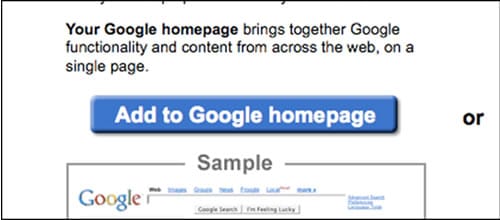
Add to Google homepage (iGoogle)
——–
The gadgets are beginning to add up.
——–
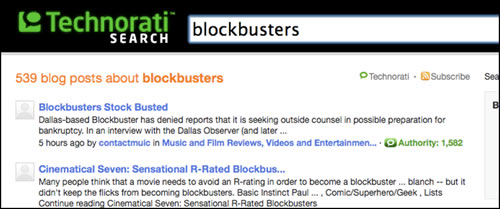
Technorati is another blog search service, where posts are indexed that sometimes Google does not pick up. Not every blog is in Google blog search. Technorati offers keyword level subscriptions by RSS. Subscribe to the entire Big List in Technorati.
——–
What you can’t see can hurt you. Hidden behind user names and passwords, some forums and message board communities don’t allow Google to index them. Some push to opt-in to board aggregation services making these walled Garden sites’ chatter searchaable and, you guessed it, subscribed by feed.
BoardReader is a useful search utility, forums opt in to, that picks up keyword mentions that Google does not see.
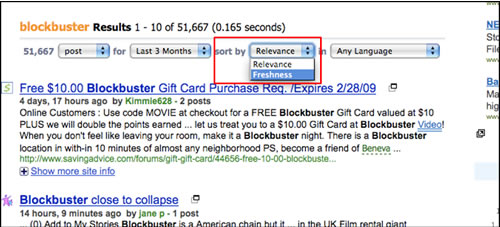
Search BoardReader for a keyword.
——–
Once results are returned, sort SERPs by “Freshness.”
——–
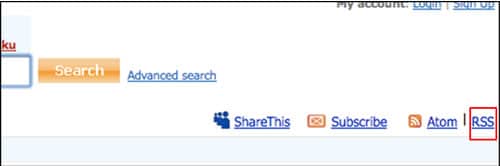
Click on RSS button
——–
You know the rest!
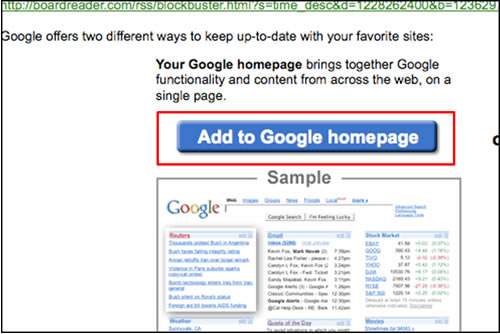
The board reader results are on the iGoogle dashboard not too.
——–
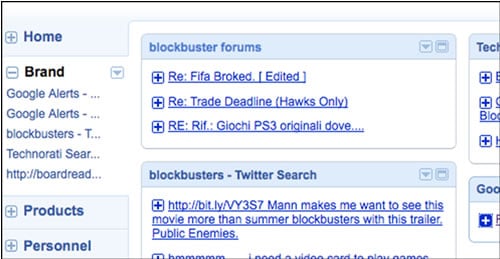
There you have it, your sweet reputation management dashboard is beginning to fill out.
——–
Interpretation tips:
- Skim the dashboard at pre-defined intervals.
- Don’t click on every link.
- Hover over to get text abstract, follow if relevant, use your brain and check it out!
- Ignore spam as much as possible.
- Set up mission critical keywords as email alerts for archiving and fast notification. Subscribe to any keyword twice, once by feed and once by Google Email Alert. Not every channel provides email alerts. Third party tools make it possible in some channels like TweetBeep does for Twitter.
- Each search channel has a somewhat unique method to generate feed subscription links for keywords, including 3rd party tools to create RSS feeds for keyword level searches. Just figure out how to add new channels.
- Remember, iGoogle is just one feed reader. Use the reader of your choice if you already have a comfort level.
- iGoogle can be customized graphically with Artist Themes and Developers Tools. It’s actually pretty amazing to have tools like this totally for free.
The author wishes to thank @matt_peterson and @mannyrivas for their excellent help in authoring this tutorial.


March 16th, 2009 at 7:41 am
Marty,
I love this, I really like your use of spread sheets. Creating a successful dashboard/interface for ORM is so important, given that there is SO MUCH data to monitor! These tips are awesome for anyone that wants to take their monitoring to the next level!
March 16th, 2009 at 10:33 am
Fantastic post. Google alerts can be used for so much, its a brilliant tool.
I tend to use netvibes as well as igoogle for feeds etc..
March 16th, 2009 at 1:01 pm
This is brilliant. I just wrote a post about using Google Alerts to overcome writer’s block but this is taking the use of Google Alerts to whole new level.
I’m certainly going to be putting something together for myself using the tips you outlined above.
Thank you,
Karl
March 16th, 2009 at 2:52 pm
No doubt the dashboard can be set up as exhaustive and nitty gritty as needed. After setting things up, keep a close eye, more than likely you’ll be able to filter unwanted Alerts using search operators. Start broad and hone in the Alerts from there.
March 16th, 2009 at 3:42 pm
This. Is. Brilliant. ‘way excellent and above and beyond the call of blogging! Stumbled and tweeted.
Thanks for your idea, Barbara
March 16th, 2009 at 3:47 pm
Great article and I really like your systematic approach. Next step is getting into the practice of logging in and actually checking the data on a regular basis.
March 16th, 2009 at 9:50 pm
Excellent!
Thank you very much for your post .. I am going to build mine right now!
March 16th, 2009 at 10:07 pm
[...] How to Build a Reputation Monitoring Dashboard » aimClear Search Marketing Blog This post is a guerrilla tutorial for building a totally free reputation monitoring dashboard, suitable for personal/corporate use or reselling to an agency client. (tags: social-media reputation branding ideas monitoring dashboard) [...]
March 16th, 2009 at 11:04 pm
Awesome. Brilliant.
This has to be one of the best posts on Reputation monitoring I have read in quite a long time !
Keep up the good work.
March 17th, 2009 at 2:14 am
Thanks to readers of this post, StumbleUpon, Twitter and feed readers. It’s really sweet to know the folks @aimClear who worked on this post with me are appreciated. Please grab our feed and follow @aimclear onTwitter.
March 17th, 2009 at 5:03 am
[...] So check it out here: How to Build a Reputation Monitoring Dashboard [...]
March 17th, 2009 at 8:22 am
Hi Marty,
I thank you so much for you work, is really brilliant, fantastic open source intelligent. Bests regards and congratulations.
Miguel
March 17th, 2009 at 8:40 am
Here a relevant blog post to build an ORM tool if you have no budget: http://www.omarkattan.com/2009/03/12/orm-on-a-shoestring/
March 17th, 2009 at 12:32 pm
Just excellent. I would like to have your permission to translate your article in Hebrew for my Information Specialists blog in Israel (with full credits of course). I really like your approach.
Thank you,
Yohanan Ouaknine
March 17th, 2009 at 12:50 pm
@Yohanan: Cool! If you would like to translate this post to Hebrew, we are happy to place the translation on aimClear Blog, and invite you to link to the post from the Information Specialists blog. Please send along the HTML, we’ll publish and send back the link.
Thanks for your kind words and support. Please subscribe to our feed and stop back.
March 17th, 2009 at 1:16 pm
This is ace! Stumbled. Must have taken you ages to screenshot it all out
March 17th, 2009 at 1:36 pm
This is very in depth and well-thought out. Thanks! Always great to get new perspective. Monitoring is such a time-drain when done manually.
Another great free tool to help you build feeds to help you ’stock’ your dashboard is Feed My Search http://feedmysearch.com/ – It’s a one step search for either news, blogs, videos, patents. books, local, or general web and have the results turned into a feed.
March 17th, 2009 at 3:31 pm
Marty,
Slam-dunk, grand-slam fabulous job on this monitoring technique – shows you are a giver and an innovator.
Thanks for sharing!
March 17th, 2009 at 4:37 pm
Amazing job with the detailed instructions. Good karma should follow.
March 17th, 2009 at 4:39 pm
Excellent usage of one of the most powerful free tools that seems to be largely ignored (and unknown). There is also a gadget for Google Trends that you can add in to track activity on up to four terms over time, and there’s also a free Compete.com gadget that lets you track three domains over time. There’s no reason not to gather a little intel about the competition while you’re watching your own back.
March 17th, 2009 at 6:05 pm
Thank you! Brilliant!
March 17th, 2009 at 8:04 pm
[...] How to Build a Reputation Monitoring Dashboard » aimClear Search Marketing Blog (tags: reputation+management) Share and Enjoy: [...]
March 17th, 2009 at 9:19 pm
Wow. That’s pretty detailed. I have achieved something similar using Yahoo Pipes to create a Union of Feeds and then published it on Twitter. Good for redistribution.
March 17th, 2009 at 9:40 pm
This was really an excellent post filled with valuable resources for reputation management and monitoring. Armed with this information, a potential victim of misinformation or negative publicity from fractured online conversations can better approach a professional ORM firm to clean things up with positive spin within the SERP’s. Nice job.
March 18th, 2009 at 8:45 pm
[...] the marketing side of the house will find fascinating the post by Marty Weintraub titled “How to Build a Reputation Management Dashboard“. Marty offers comprehensive, step-by-step instructions in his post on assembling a robust [...]
March 20th, 2009 at 9:39 am
Brilliant post Martin although I don’t seem to be able to find the Google alerts gadget in igoogle. Thanks though, great insight.
March 20th, 2009 at 10:33 am
@OSCAR: The gadget shows up AFTER you “add to Google Homepage.” It’s a normal feed widget. Simply bookmark any feed in Google Homepage and it appears in iGoogle as a gadget.
March 22nd, 2009 at 10:30 am
[...] How to Build a Reputation Monitoring Dashboard » aimClear Search Marketing Blog [...]
March 22nd, 2009 at 9:05 pm
[...] How to Build a Reputation Monitoring Dashboard » aimClear Search Marketing Blog [...]
March 23rd, 2009 at 2:05 pm
This article is excellent. Comprehensive monitoring is the first step toward successful online reputation management. However, I feel the one thing that would justify investing in a paid tool would be to have a monitoring solution that also allowed you to MANAGE and document your responses to the finds from one unified interface. That is why we developed http://www.BuzzDing.com.
March 24th, 2009 at 9:24 am
Exceptional work…thanks very much I now know what I am going to do this afternoon.
March 24th, 2009 at 9:43 am
[...] Building Your Own Reputation Management Dashboard [...]
March 26th, 2009 at 4:33 pm
Hi – I’m trying to set this up but run into a snag when it comes to adding the feeds. I don’t get the option to use Google as my feed reader, thus nothing is showing up on my Google home page. Can you help?
March 28th, 2009 at 1:12 pm
@Mary Ann: Call our office on Monday & we’ll have someone give you a hand.
March 29th, 2009 at 5:13 pm
[...] How to Build a Reputation Monitoring Dashboard » aimClear Search … [...]
March 30th, 2009 at 9:22 am
Thanks for your answer Martin. However when I paste the rss url into the new tab google says something like that “This XML file does not appear to have any style information associated with it. The document tree is shown below.” and there are no options to add it to the homepage. A shame since it was a great tip.
Thanks again anyways.
March 30th, 2009 at 11:13 am
@OSCAR CARRERAS What browser/OS are you using please? Also, if you want to arrange it with us, I’ll be happy to have someone from our office connect with you to solve the issue. We’ve seen isolated incidents where certain browsers choking on the code. Let us know and we’ll be happy to help.
Thanks for stopping by.
April 5th, 2009 at 6:58 am
[...] has a great item on building a reputation monitoring dashboard. He also has buzz pocket mining tools for those interested in mining social media for [...]
April 14th, 2009 at 2:39 am
[...] article was posted recently on aimClear Search Marketing Blog about “How to build a reputation monitoring [...]
April 19th, 2009 at 7:02 pm
[...] How to Build a Reputation Monitoring Dashboard (March 2009) [...]
May 28th, 2009 at 10:25 pm
Marty… can’t wait to get this tool up and running. I’m having some of the same problems as others. I installed Firefox and am still having trouble posting alerts to the Google Home Page. Thoughts? It currently takes me to the Google Reader page. – Chuck
May 28th, 2009 at 11:58 pm
@Chuck: Using GoogleReader, or any other RSS reader, works just great. We suggest you build it in Google reader. Thanks for stopping by. Call our office if you need any help.
June 26th, 2009 at 7:13 pm
[...] note: I loved Marty Weintraub’s post about How to Build a Reputation Monitoring Dashboard and Duct Tape Marketing’s similar post on how to use Netvibes to track social media mentions. [...]
June 26th, 2009 at 11:19 pm
This is great. I did a similar thing with my company using Yahoo Pipes, I think it’s a lot more efficient. I just need a way to categorize the content after it’s gathered, if you have any ideas let me know!
July 16th, 2009 at 3:57 am
“Reputation Management Crises? 8 Crucial Priorities” New aimClear reputation monitoring/managing post http://www.aimclearblog.com/2009/07/13/reputation-management-crises-8-crucial-priorities/
July 30th, 2009 at 3:12 pm
How to build a reputation monitoring dashboard. What more do you need? Yes it’s from March but still good. http://bit.ly/14SOtl
August 17th, 2009 at 3:51 pm
Instead of adding a google alert for every keyword variation and spelling mistake, couldn’t you use the query “blockbusters” OR “block buster” OR etc etc thus saving you time when building your reputation monitoring tool…
There are some great search modifier tips at http://www.alertrank.com/mrgooglealerts/
September 25th, 2009 at 10:44 am
Fantastic tool, I had one problem which was that RSS feeds were opening in Outlook but I fixed that (although it took me an embarassingly long time…)
Now I’m faced with a different issue: the feeds aren’t updating. At all. They seem to just take whatever’s out there and then not show any new information. Has anyone else had this problem? Better still, does anybody know how to solve this problem?
Thanks in advance!
October 8th, 2009 at 3:10 am
[...] iGoogle – -您知道您可以定制自己的iGoogle仪表板和创造一个美妙的品牌监测工具?看看下面的截图在这里您可以看到我设置我的iGoogle捕获品牌从 Twitter的搜索饲料提到,提到任何论坛和博客引用。如何有助搜索引擎优化你问?除了监测所有重要的声誉,我的iGoogle定制的仪表板也可作为另一个链接取景器。你看,那里提到的品牌,往往有联系,甚至新的链接的机会。欲了解更多有关采取的iGoogle到一个新的水平,出马蒂温特劳布的巨大差价 AimClear以上使用的iGoogle building a reputation monitoring dashboard。 [...]
November 4th, 2009 at 11:08 pm
[...] are configured as departments of specialists. It’s no wonder! In today’s complicated world PPC, ORM, social media, link building, affiliate networks, analytics, content creation, video, public [...]
November 12th, 2009 at 5:49 pm
[...] to create your own reputation monitoring dashboard. Marty Weintraub wrote a great post on exactly how to build that over at [...]
January 5th, 2010 at 8:11 am
[...] How to Build a Reputation Monitoring Dashboard (aimClear): This is an incredibly huge post by Marty Weintraub on how to set up a reputation management monitoring dashboard, from doing the keyword research to finding additional keywords to monitor to actually building it. It has lots of screenshots and good actionable information that you can get started with today. [...]
January 13th, 2010 at 12:10 pm
[...] How to Build a Reputation Monitoring Dashboard Marty Weintraub, aimClear | 3/16/09 [...]
January 15th, 2010 at 8:38 am
[...] Weintraub wrote a great step by step tutorial on how to build a reputation monitoring dashboard on iGoogle, that integrates Google Alerts, Technorati and BoardReader feeds for effective social [...]
January 27th, 2010 at 9:14 pm
[...] How to Build a Reputation Monitoring Dashboard » aimClear Search Marketing Blog (tags: reputation dashboard alerts socialmedia e-reputation) Leave a Comment [...]
February 8th, 2010 at 1:56 pm
[...] Against Ongoing Impersonation. Make your own reputation monitoring dashboard, or use a commercial reputation monitoring service to track your name in case any new incidents pop [...]